Research checked 22 September 2026. Methods and reproducible files are documented below. The hero is an AI-generated editorial illustration.
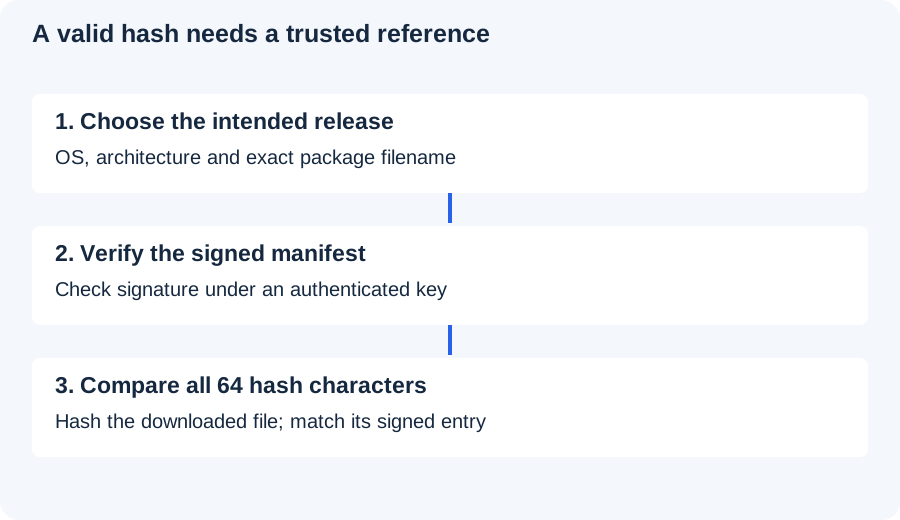
A matching checksum answers one question: does this file match the bytes described by this checksum? It does not identify who supplied either file. Before installing a , connect three things: the release you intended to download, an authenticated , and the hash of the actual installer.
We checked Core 0.21.5.8 using four downloaded release files, its signed checksum manifest and two deliberately altered inputs. This guide includes the observed hashes and test results. It also records a limitation: our signing key came from the same official download host as the manifest, so the laboratory check alone is not independent authentication of the maintainer's identity.
Start from the release, not a search advertisement
Open the Litecoin project's 0.21.5.8 release page and the official version directory. Read the release notes, including upgrade instructions. Select your operating system and architecture. The Windows ZIP, Windows installer, macOS disk image and Linux archive are different files with different checksums.
This is a version-pinned worked example, checked on 22 September 2026. Do not interpret the version in this article as a permanent recommendation to install it. When a later maintenance or security release appears, repeat the procedure against that release's own manifest and current signing information. Our 0.21.5.8 release analysis covers the changes rather than the download-verification process.
Download the program, SHA256SUMS.asc and the release's public signing key into a new folder. Keep file extensions visible. A file named SHA256SUMS.asc.html may be an error page saved by the browser; a checksum command applied to that page can run successfully while checking the wrong object.
What the three checks establish

| Check | Question answered | Still unresolved |
|---|---|---|
| Package selection | Is this the intended OS, architecture and release? | Integrity and provenance |
| Signature + authenticated key | Did the known key sign this manifest? | Correctness of the software |
| Full file SHA-256 match | Do downloaded bytes match its signed entry? | Bugs, runtime environment and backup recovery |
A normal HTTPS connection protects the transport to the domain you visited. It does not correct a misspelled domain, a compromised account, an untrusted signing key or a compromised computer. Download verification is one part of the process. Back up an existing wallet before upgrading it, and never enter a into a web-based “verification” form.
Inspect the key fingerprint before trusting the signature
The distributed with this release reports the following full fingerprint:
D356 21D5 3A1C C6A3 4567 58D0 3620 E9D3 87E5 5666The user ID in the key is David Burkett. A name or email inside a public key is not proof of identity; anyone can generate a key with a chosen label. Compare the full fingerprint with a previously authenticated record or obtain through an independently established maintainer channel. A search result repeating this article's fingerprint is not a new trust anchor.
We used the key file linked in the official release directory. GnuPG verified the manifest under that key but reported its identity trust as undefined. We did not authenticate the maintainer out of band. The observed fingerprint is supplied so the experiment can be checked, not so readers can skip authenticating it. If you cannot establish the expected key, pause before installing a wallet that will hold valuable funds.
With GnuPG installed, inspect the downloaded key without importing it:
gpg --show-keys --with-fingerprint davidburkett38-key.pgpAfter establishing the expected fingerprint, import that specific file and verify the manifest:
gpg --import davidburkett38-key.pgp
gpg --verify SHA256SUMS.asc
Do not use a short key ID or the display name as the comparison. A signing subkey may have its own fingerprint; if a later release uses one, check its relationship to the authenticated primary key rather than assuming the two strings must be identical. The commands above use the clear-signed manifest supplied for this release, not a detached signature over the installer.
Read the result, including the warning
In our run, GnuPG returned exit code 0 and a VALIDSIG status for the fingerprint above. It also printed a trust warning. Those statements concern different things: the signature was mathematically valid under the supplied public key, while our keyring had no independent certification of that key's identity.
| Output | Meaning | Action |
|---|---|---|
| Good signature / VALIDSIG | Valid signature under the supplied key | Also authenticate the full fingerprint |
| Trust undefined / unknown | Key identity not certified in this keyring | Do not invent trust to remove the warning |
| No public key | Verification cannot be completed | Obtain and authenticate the intended key |
| BAD signature / BADSIG | Signed content or signature does not verify | Stop; do not use the manifest |
| Expired / revoked key or signature warning | Validity needs further assessment | Check current official signing guidance |
Do not change a key to “ultimately trusted” merely to remove a warning. That changes your local trust declaration; it does not add evidence about the maintainer. GnuPG's integrity-check guide and command reference explain signature checking and fingerprint inspection.
Only after a successful signature check should you use the checksum line for your exact filename. Open the clear-signed manifest in a text editor and locate that line. Compare the entire 64-character value, not the first and last few characters. Extra spaces in the display are not meaningful; a changed hexadecimal digit is.
Calculate the hash on Windows, macOS or Linux
Run the following command from the folder containing the downloaded file. The hash command does not execute the installer.
Windows PowerShell
Get-FileHash -Algorithm SHA256 -LiteralPath '.\litecoin-0.21.5.8-win64-setup.exe'PowerShell commonly displays the result in uppercase. Hexadecimal case does not change the value. Compare it with the win64-setup.exe line, not the ZIP line. For the portable ZIP, substitute that ZIP's exact filename.
macOS Terminal
shasum -a 256 litecoin-0.21.5.8-osx.dmgThe disk image and the osx64.tar.gz archive are separate artifacts. A match for one does not validate the other. We hashed the DMG; we did not run a macOS installation or test Apple notarization.
Linux terminal
sha256sum litecoin-0.21.5.8-x86_64-linux-gnu.tar.gzThe command shown is for the x86-64 archive. ARM, AArch64 and RISC-V builds have their own filenames and hashes. Do not rename an architecture-specific package to fit an example. SHA-256 does not care about a file's name, but you still need to pair the file with the correct signed manifest entry.
Our four-file check
We downloaded the following files from the project's GitHub release assets, calculated SHA-256 locally and compared each result with the clear-signed manifest obtained from the official download host. Exact byte sizes are included to help diagnose incomplete downloads; size equality alone is not an integrity check.
| Package | Bytes | SHA-256 (full value) | Signed entry |
|---|---|---|---|
| litecoin-0.21.5.8-osx.dmg | 14,567,419 | 6ea3b94379be34239a521b410260dc92b1fed0e436c2ffb1b72a5065ed5db5c1 | Match |
| litecoin-0.21.5.8-win64-setup.exe | 19,136,096 | 788671ceef824b8939cd4f7913def63098c6caacf93e5e8d03c215780c905f0f | Match |
| litecoin-0.21.5.8-win64.zip | 34,230,657 | 78593091ef3545a2f06335d5f9ac5137a59e258d17e978951db693083b294109 | Match |
| litecoin-0.21.5.8-x86_64-linux-gnu.tar.gz | 36,951,482 | 43200c9f9d65ebc126ea5833ca9429e144c4b3273da6bb9f4e89fd7450ab1be9 | Match |
All four hashes matched. We subsequently used the verified Windows ZIP's command-line binaries for an isolated regtest experiment. We did not install the Windows setup program or execute the macOS and Linux packages. This was an integrity experiment, not a cross-platform installation review, malware scan, code audit or reproducible-build comparison.
Two failures we deliberately introduced
First, we changed one byte in an in-memory copy of the Windows ZIP, at zero-based byte offset 17,115,328. Its hash changed from 78593091…3b294109 to 2483b8e0…f7cb4090, so it no longer matched the original signed manifest. We never executed the modified bytes. Second, we changed a checksum digit inside a copy of the clear-signed manifest. GnuPG returned BADSIG and exit code 1.
| Input | Check | Observed result |
|---|---|---|
| Original manifest | GnuPG signature | VALIDSIG; exit 0 |
| One changed checksum digit | GnuPG signature | BADSIG; exit 1 |
| Original Windows ZIP | SHA-256 comparison | Match |
| ZIP copy with one changed byte | SHA-256 comparison | Mismatch; not executed |
The second test matters because a checksum copied from an altered download page can agree with an altered binary. A signature under an authenticated key protects the checksum statement against that substitution. If the attacker can also replace the trusted key, the process loses that protection. This is why fingerprint authentication cannot be reduced to another file downloaded from the same compromised source.
Keep a small verification record
Save the release URL, exact filename, download date, SHA-256 result, signed manifest, public-key fingerprint and signature-check output. Record where you authenticated the fingerprint. This makes it possible to distinguish “I checked the hash” from “I verified the signed hash under a known key” months later.
If the hash differs, stop. Check for an incomplete download or a mismatch between package and manifest version, then download afresh from the official release. Do not take a replacement checksum from an unsolicited support message. If the signature fails, keep the failed output and check the official release channel; repeatedly importing random keys is not a repair.
Download the evidence
The verification results JSON contains the full observed hashes, byte counts, GnuPG status lines and altered-byte result. It contains no private signing keys. A short Python reproduction script checks files you have already downloaded, verifies the signature with GnuPG and repeats the two controlled failure tests. Review its usage notes before running it.
For the next step, use the full-node guide. Download verification does not test whether a is recoverable, whether a peer supplied the latest chain tip, or whether a particular release contains an undiscovered bug.
Frequently asked questions
Is a matching SHA-256 hash enough?
It establishes a match to the expected bytes. You must also establish where the expected hash came from. For this release, verify the signed manifest with an authenticated maintainer key before comparing the file hash.
Does “Good signature” mean the program is safe?
It means the signature checks under the public key used. It does not authenticate an unfamiliar key by itself, inspect the program's behavior or guarantee the release has no bugs.
Sources and test conditions
Original tests ran on Windows on 22 September 2026, using GnuPG and Python SHA-256. The release manifest, public key and package names are linked above; software behavior was checked against GnuPG's documentation. OS hash-command references: Microsoft Get-FileHash and GNU SHA-2 utilities. The displayed editorial hero is illustrative and is not a screenshot of the test.